
Deploy an Open-Weight LLM on a Rented GPU with vLLM
Running Qwen on a GPU virtual machine
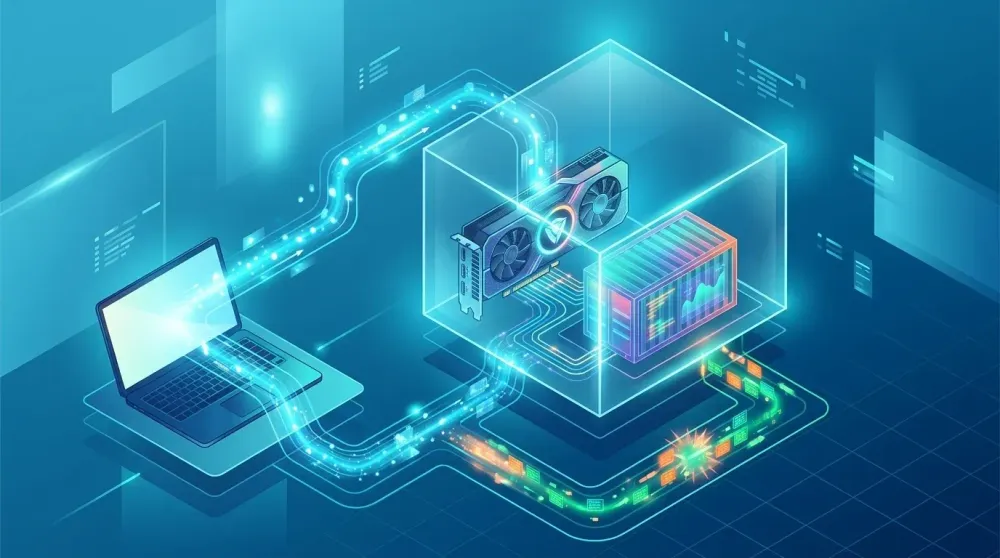
To deploy an open-weight LLM with vLLM on Qudata.ai, rent a Linux virtual machine (VM) with an NVIDIA GPU. Inside the VM, we’ll run Qwen2.5-7B-Instruct in a Docker container and send its first request through an SSH tunnel.
Choose the virtual machine before renting
On Qudata.ai, choose a VM with an NVIDIA GPU and check that it supports SSH access. For this example, choose one BF16-capable GPU with 24 GiB of VRAM. The weights account for about 14.2 GiB, and vLLM needs room to serve requests. Allow disk space for the Docker image and model files. Check the instance type, GPU and storage before paying.
If you already rented a Docker instance, this walkthrough cannot run inside it. To switch, save any files you need, delete the Docker instance when the rental terms allow it, and rent a VM separately. A running Docker instance cannot be converted into a VM.
Use the hostname, username and port in the VM details to connect over SSH. Run the following commands on the VM with Docker and NVIDIA Container Toolkit installed.
nvidia-smi
docker version --format '{{.Server.Version}}'
docker run --rm --gpus all ubuntu:24.04 nvidia-smi
The first command checks the host driver and the third checks whether containers can see the GPU. If only the host sees it, check your NVIDIA Container Toolkit setup. Use Docker Engine 28.0.0 or newer for the port binding below and a driver compatible with the image’s CUDA 12.9 runtime.
Start vLLM in Docker
Create a Hugging Face cache directory on the VM and start the container. The image tag pins the vLLM version. The port mapping binds the service to the server’s loopback interface. For additional image options, see the official vLLM Docker guide.
mkdir -p "$HOME/.cache/huggingface"
docker run -d --name qudata-vllm --gpus all --shm-size=2g \
  -p 127.0.0.1:8000:8000 \
  -v "$HOME/.cache/huggingface:/root/.cache/huggingface" \
  vllm/vllm-openai:v0.30.0-cu129 \
  --model Qwen/Qwen2.5-7B-Instruct --served-model-name qwen-demo \
  --host 0.0.0.0 --port 8000 --dtype bfloat16 \
  --max-model-len 4096 --max-num-seqs 4 \
  --gpu-memory-utilization 0.90
docker logs --tail 80 -f qudata-vllm
--host 0.0.0.0 sets the listening address inside the container. Docker’s -p 127.0.0.1:8000:8000 controls access on the host. The 4,096-token limit covers the prompt and generated output together. --max-num-seqs 4 caps the number of sequences the engine processes concurrently. The first run downloads the weights. When the server is ready, press Ctrl+C to stop following the log. The container keeps running.
Send the first request through SSH
Open a terminal on your own computer. Replace user@your-gpu-host with the VM’s SSH login and host. If your VM specifies a custom SSH port, pass it with -p. Leave the tunnel running while you issue the API requests in a second local terminal.
ssh -N -o ExitOnForwardFailure=yes \
  -L 127.0.0.1:18000:127.0.0.1:8000 user@your-gpu-host
curl -fsS http://127.0.0.1:18000/v1/models
curl -fsS http://127.0.0.1:18000/v1/chat/completions \
-H 'Content-Type: application/json' \
-d '{"model":"qwen-demo","messages":[{"role":"user",
"content":"Explain the purpose of a KV cache in one sentence."}],
"max_tokens":64,"temperature":0}'Look for qwen-demo in the model list and choices[0].message.content in the chat response. For a client that supports Chat Completions, use http://127.0.0.1:18000/v1 as the base URL. This demo assumes a trusted host and SSH access. For a shared endpoint, configure authentication, TLS and request limits at the ingress proxy.
Troubleshoot startup and memory errors
Read the container logs and check nvidia-smi. If vLLM says the context exceeds its KV cache capacity, start with --max-model-len 2048. If memory runs out under load, lower --max-num-seqs to 1 and raise it after testing. To apply new flags, run docker stop qudata-vllm and docker rm qudata-vllm, then recreate the test container. The cache in the mounted directory survives. If the weights themselves cannot load, check for other GPU processes and consider a smaller model, a compatible quantized checkpoint or a GPU with more memory.
If curl cannot connect, run curl -fsS http://127.0.0.1:8000/v1/models from the VM’s SSH session. If it works there, check the tunnel and local port. When you finish testing, run docker stop qudata-vllm. If you no longer need the VM, save any files you need and end the rental in Qudata separately. You can also rent an LLM with a dedicated GPU on Qudata.ai and connect to a preconfigured OpenAI-compatible API.